Meeting Minutes Template: 3 Formats to Copy, With Example
Copy-ready meeting minutes templates for formal, weekly team and client meetings, a filled example, and the format mistakes that make minutes hard to use.
Templates8 min read
Meetleaf by Langkir Labs
Meetleaf turns a recorded meeting into minutes you can send and sign: a summary, the decisions, and follow-ups with an owner and a due date.

The iPhone, iPad and Mac apps are in review with Apple.
Free to use. No account needed.
Three steps. You stay in the conversation, and Meetleaf keeps the record.
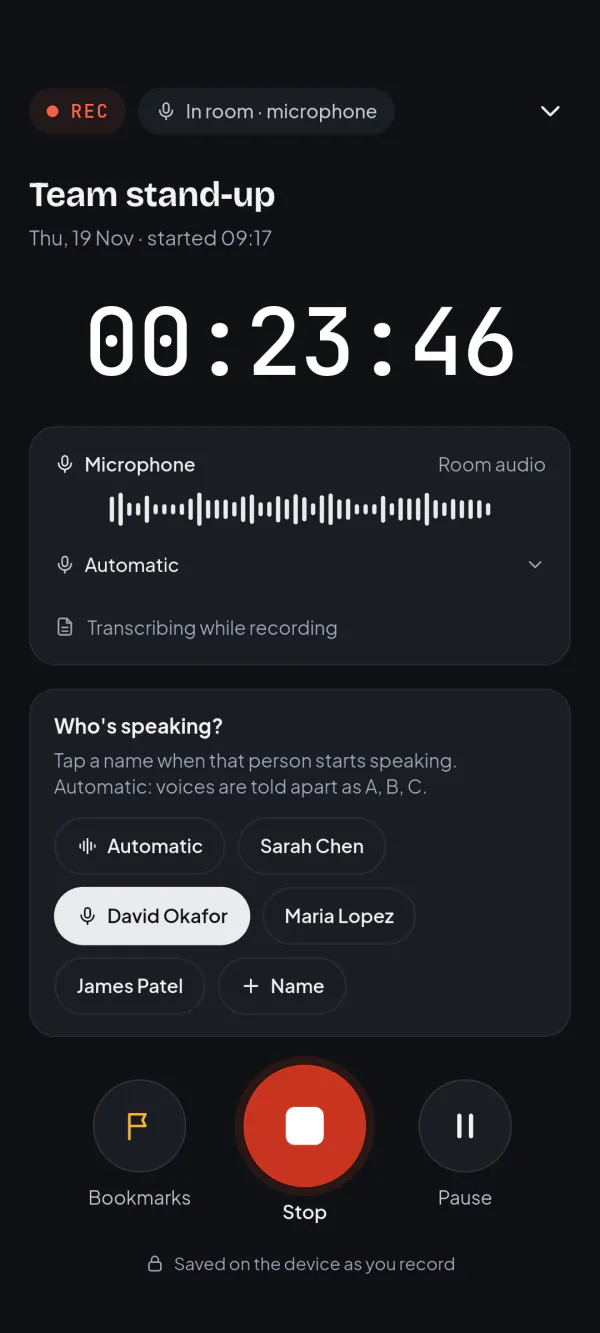
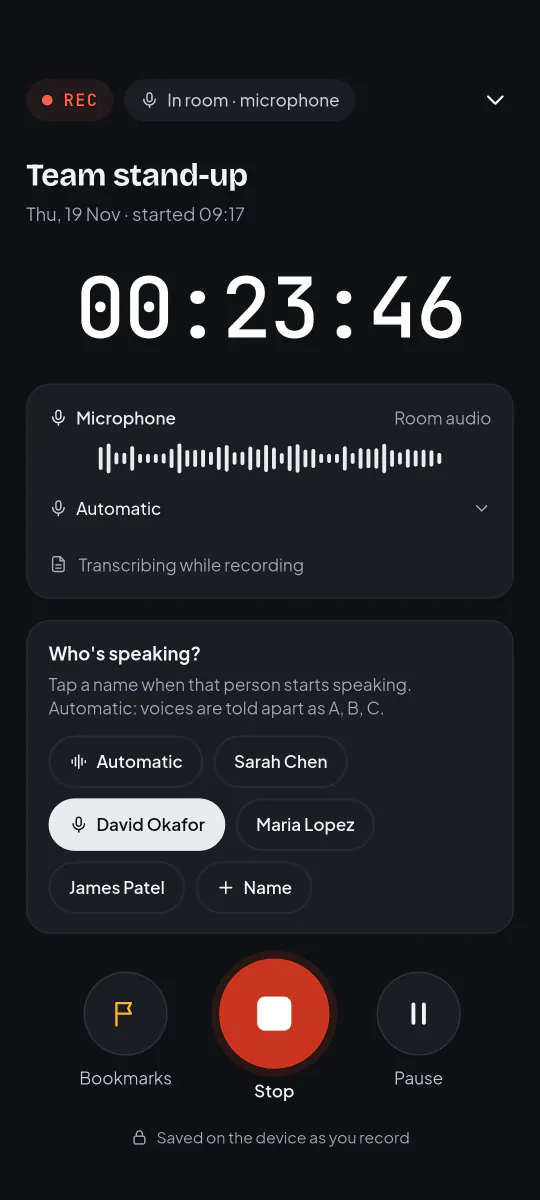
Put your phone on the table and press record. Pause when you need to, add bookmarks, and lock the screen if you like.
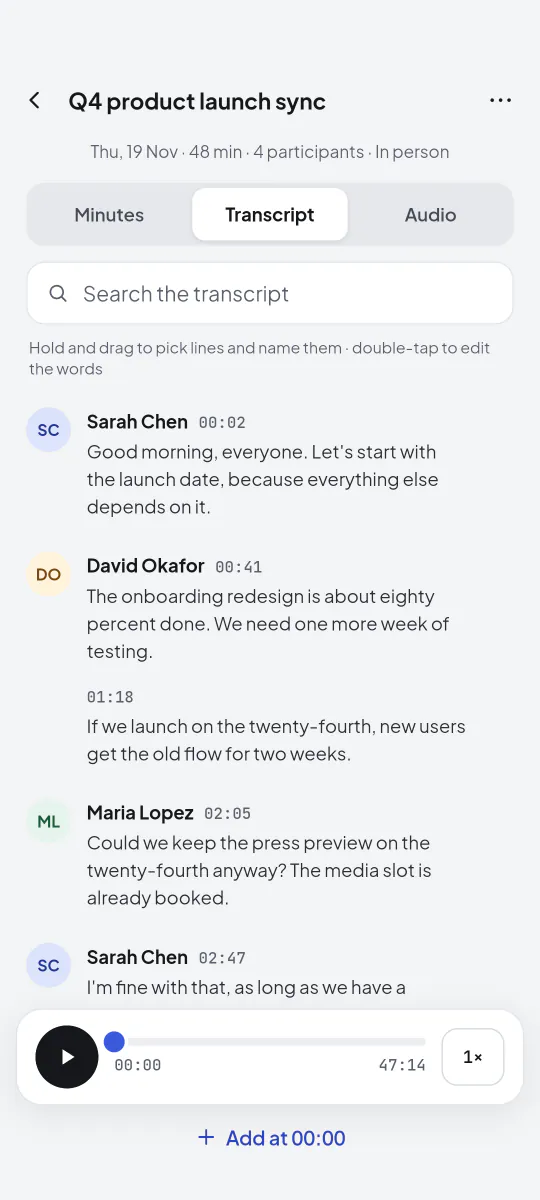
Add the attendees first, then tap a name when someone starts talking. Voices are also told apart as A, B, C on your phone.
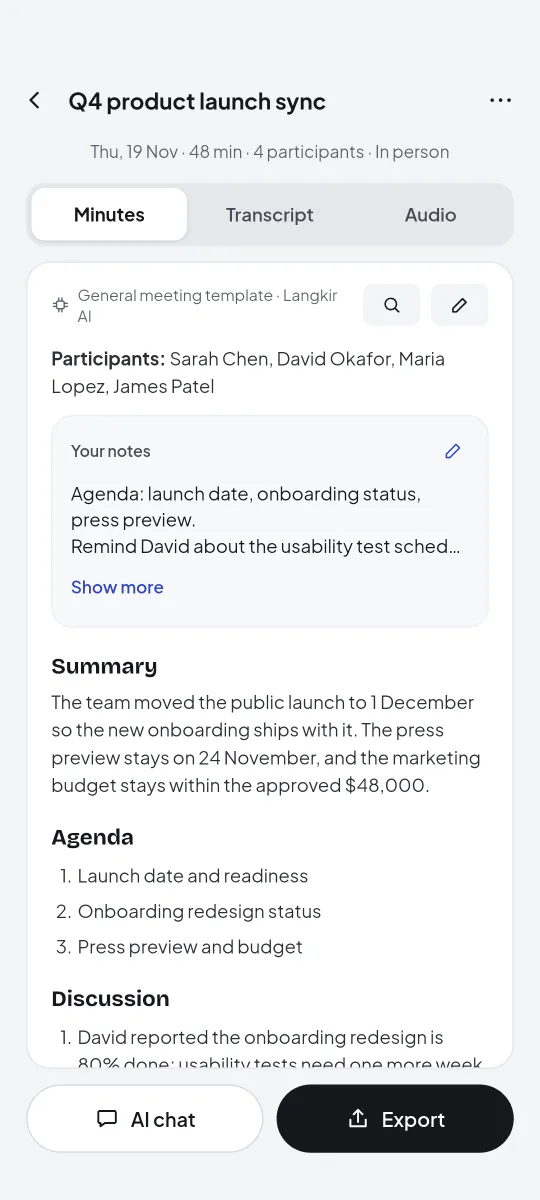
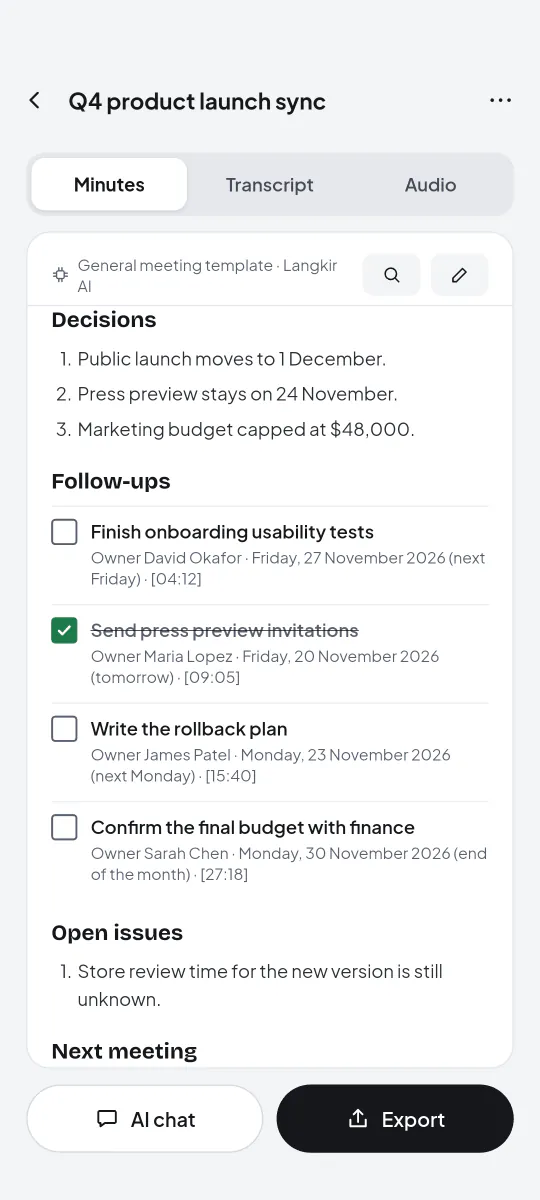
Langkir AI writes the minutes. Read them through, then export to Word or PDF with your letterhead and signature lines.
Pick the document style that fits the meeting. Every style carries your organization's letterhead.
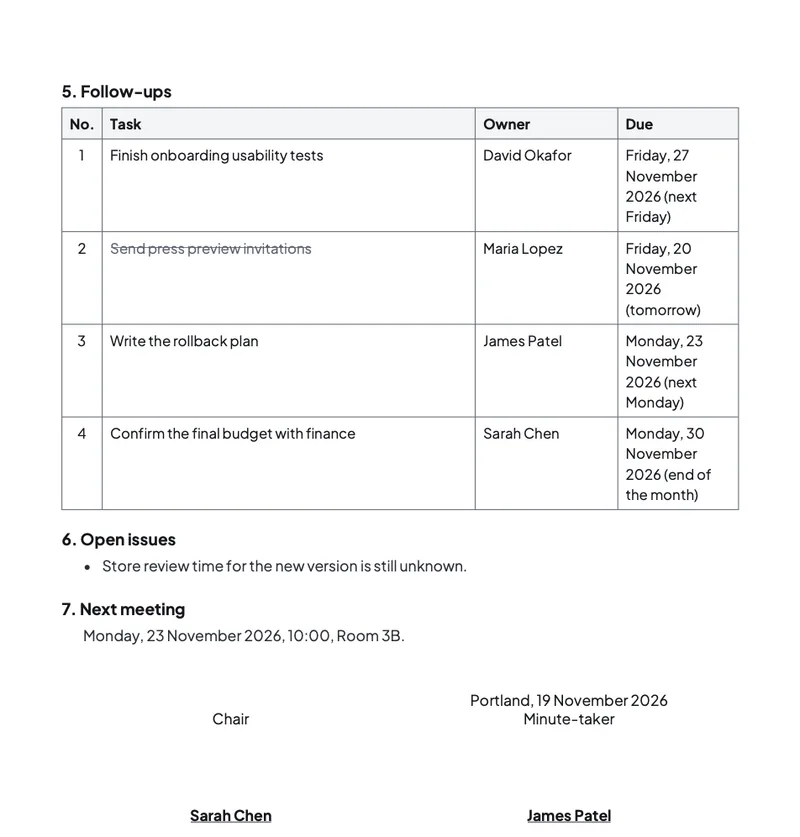
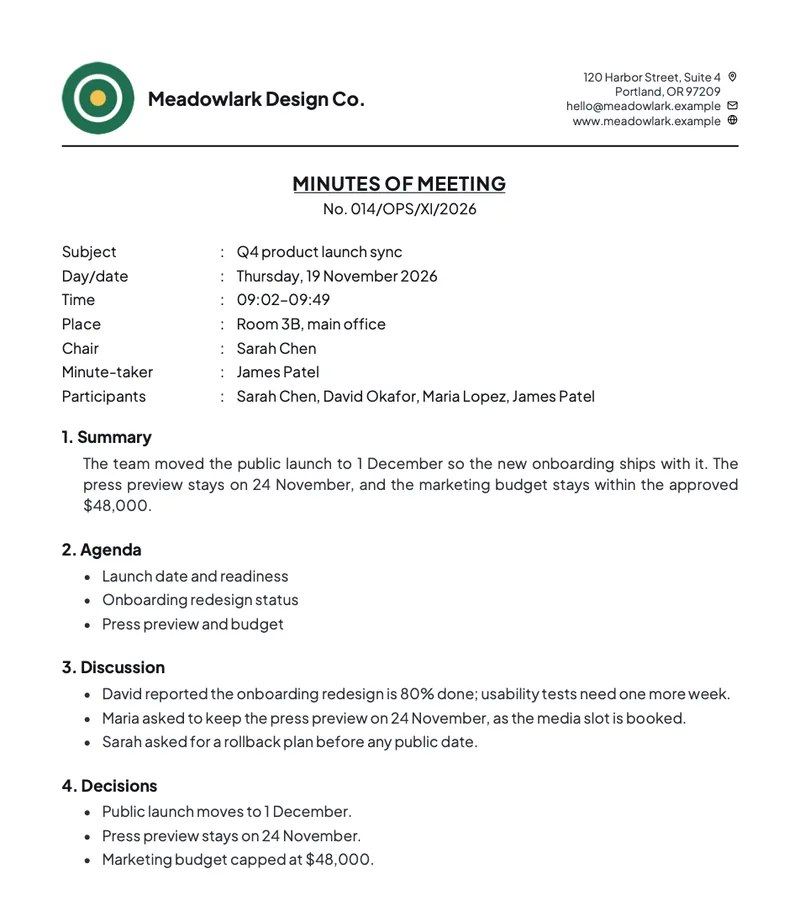
Real screens from the app. The meetings, people and organizations shown are examples.
Add the attendees before the meeting, then tap a name when someone starts talking. Forgot someone? Add them while you record.
The transcript puts each line under its speaker. Tap a line to hear it, fix a word, or name a voice later.
Langkir AI writes the minutes: a summary, the decisions, and follow-ups with an owner and a due date. It is built in, with no API key and no sign-up, within a monthly allowance.
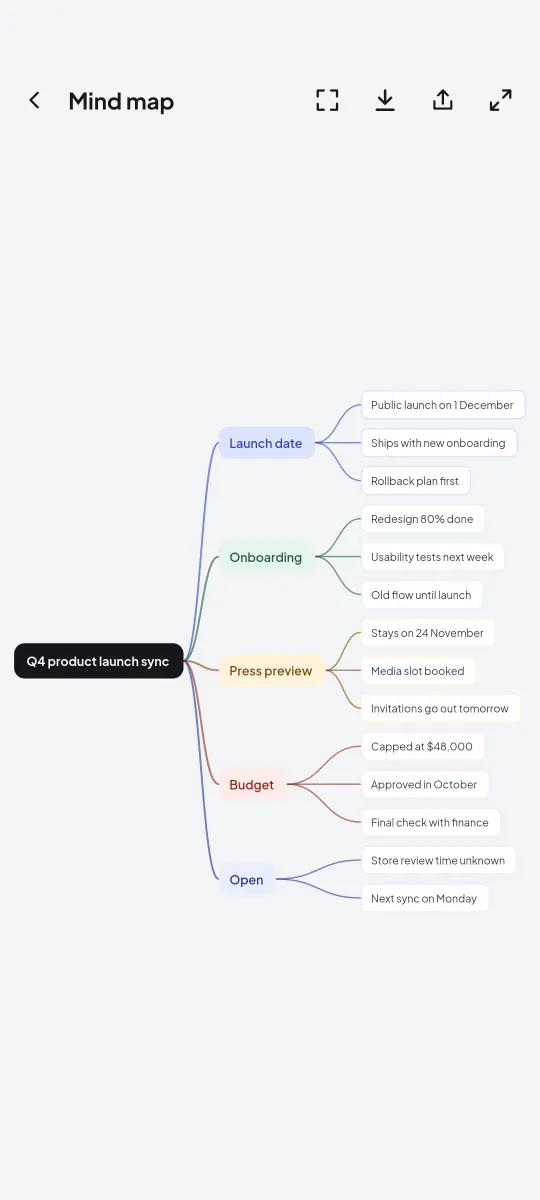
The minutes come with a mind map of the topics and an AI assessment of the meeting as a whole, with suggestions for next time. It never rates individual people.
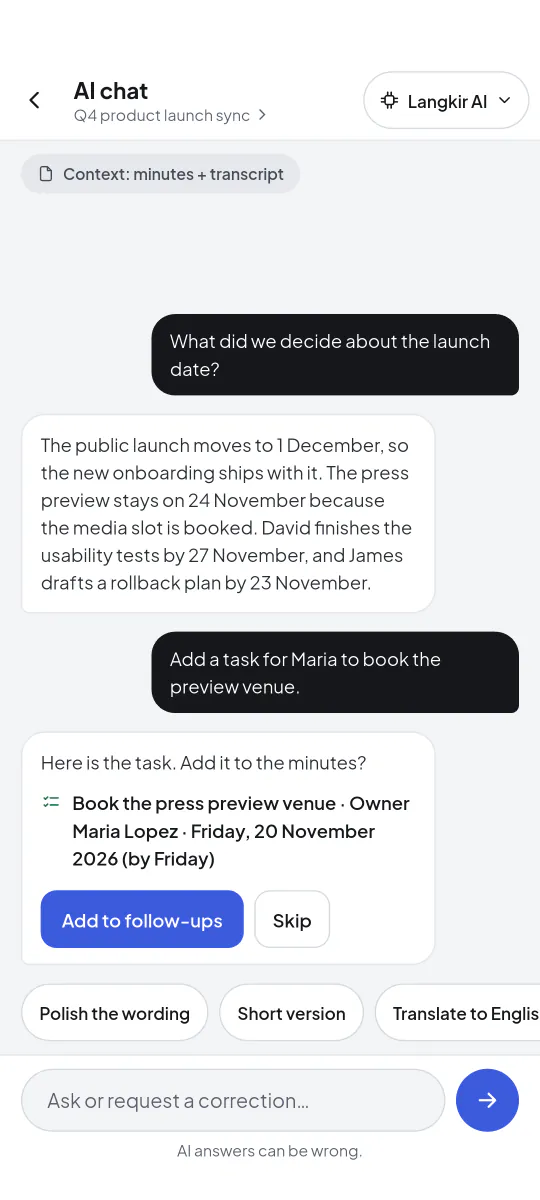
Open the chat and ask about the meeting. Answers come from its minutes and transcript.
What did we decide about the budget?
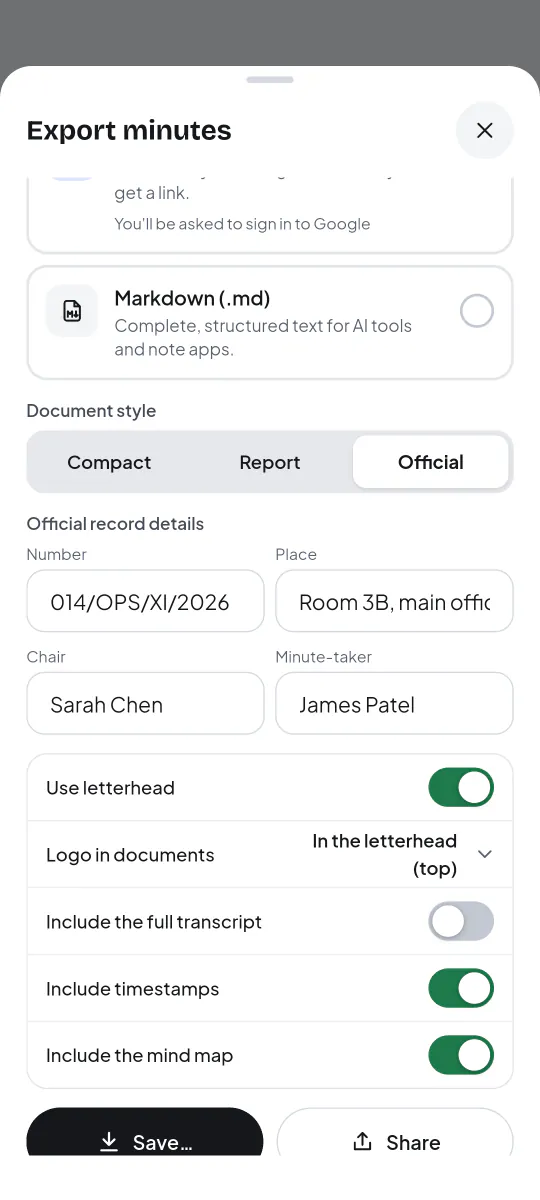
Choose Compact, Report or Official, add your letterhead, then save or share. With Pro, also export to Google Docs and Markdown.
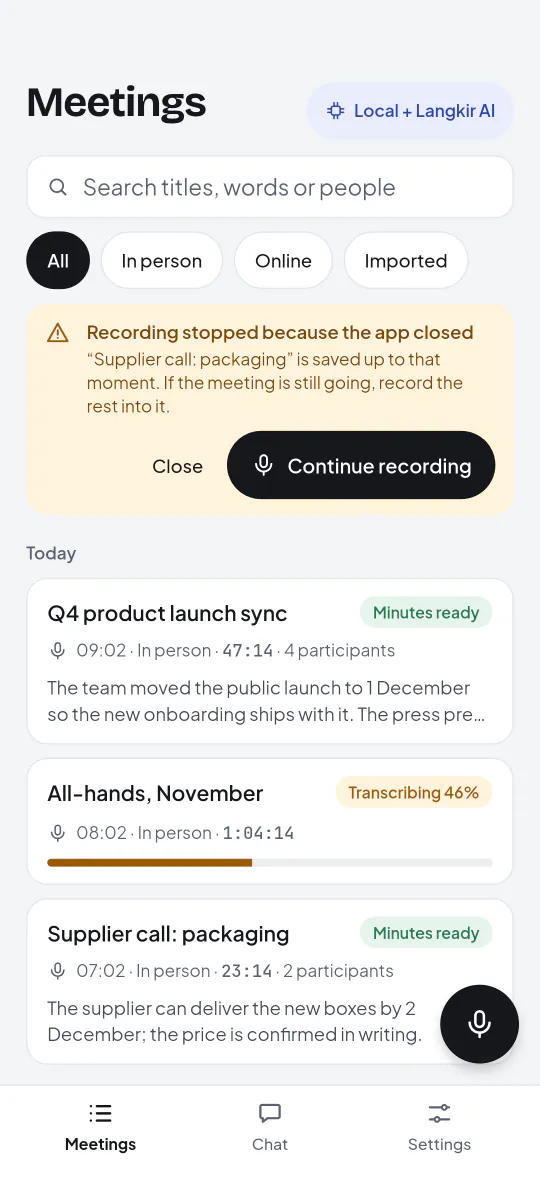
If a recording stops, continue it in the same meeting. One meeting stays one recording, with one set of minutes.
Made for long meetings in real rooms.
You choose where the transcript is made.
General, formal, weekly team and client meetings. The minutes can be written in a different language from the meeting.
Back up to a file or your Google Drive with Pro. Restoring is free, right from the welcome screen on a new device.
Use Meetleaf in your language, in light or dark mode, on phones and tablets.
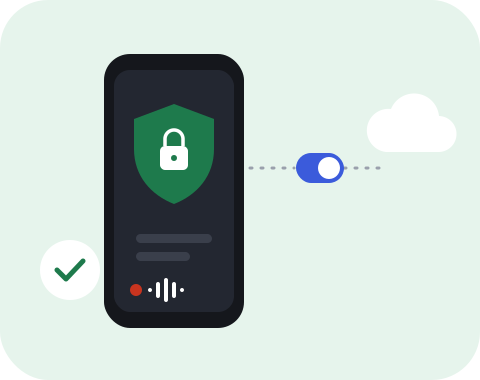
You decide where a meeting goes. Here is exactly what happens.
Please let participants know when a meeting is being recorded.
Meetleaf is free to use with ads. Meetleaf Pro is an optional subscription, monthly or yearly.
| Feature | Free | Pro |
|---|---|---|
| Record, import, transcribe on your phone, export to Word and PDF | Included | Included |
| Minutes and transcripts by Langkir AI | Monthly allowance | Much larger allowance |
| Exports without the Meetleaf footer | Not included | Included |
| Chat with a meeting | Limit per meeting | No limit per meeting |
| Ads | With ads | No ads |
| Export to Google Docs and Markdown | Not included | Included |
| Your own minutes templates | Not included | Included |
| The most accurate on-device transcription model | Not included | Included |
| Search across all meetings, and Ask all meetings with sources | Not included | Included |
| Your own AI account and API key, or your own local server | Not included | Included |
| Encrypted backups to a file or Google Drive | Restore only | Included |
Restoring a backup is always free, also after Pro ends.
Copy-ready meeting minutes templates for formal, weekly team and client meetings, a filled example, and the format mistakes that make minutes hard to use.
Templates8 min read
Run meetings that end in decisions: a copy-ready agenda with times, three clear roles, a parking lot for side topics and a five-minute recap.
Meetings8 min read
Turn rough notes into clear meeting minutes: what to record, what to skip, four clear steps, a worked example from notes to final minutes, and a checklist.
Meeting minutes8 min read
On your phone. Recordings are saved in the app's private storage, and transcripts, minutes and chats in an encrypted database. Meeting content only goes to a cloud AI after you allow it, and you can withdraw that permission at any time in Settings.
No. Meetleaf has no accounts. Google sign-in is optional and only used for Google Docs export and backups in your Google Drive.
Recording works offline. Transcription works without internet on phones that support it (about 4 GB of RAM or more), after a one-time model download. Langkir AI needs a connection.
The app is available in 28 languages. Meetings can be transcribed in 27 spoken languages or with automatic detection, and the minutes can be written in a different language from the meeting.
Make an encrypted backup to a file or Google Drive (a Meetleaf Pro feature), then restore it on the new phone, right from the welcome screen. Restoring is always free, also after Pro ends. Keep the backup password somewhere safe: without it, a backup cannot be opened.
Yes. Meetleaf is free to use with ads, and Langkir AI writes minutes within a monthly allowance. Meetleaf Pro is an optional subscription that removes ads and adds more, such as a much larger allowance and Google Docs export.
Delete a single meeting from its page, or every meeting at once in Settings, under Privacy & data. Uninstalling the app also removes the data on your phone. Copies made elsewhere, such as backup files or Google Docs, stay until you delete them there.
Free to use, with no account to create. Your next minutes start with one tap on record.
The iPhone, iPad and Mac apps are in review with Apple.